

Dual Monitor Setup UK 2026: Why Hybrid Workers Should Stop Squeezing Two Apps Onto One Screen
The most useful thing on my desk cost £169 and I put off buying it for two years. A second 27-inch screen, plugged into a laptop that had spent the pandemic running Outlook, Teams, a browser and a spreadsheet on 14 inches of glass. A proper dual monitor setup UK home workers can actually live with isn’t a gaming rig with curved ultrawides and RGB strips. It’s the most boring upgrade in the whole home-office catalogue, it costs less than half a decent chair, and most hybrid workers in this country still haven’t got round to it.
In This Article
- Why one screen is the real productivity bottleneck
- What a dual monitor setup UK buyers should expect to spend in autumn 2026
- Matching panels or mixing what you already own
- Or just use the laptop as the second screen
- Where to put the second screen: landscape, vertical or stacked
- The boring bits: cables, docks and HDMI versions
- The settings nobody tells you about
- Four things people get wrong about two screens
- Will your employer pay for it?
- When a dual monitor setup is the wrong answer
- What to buy first if you're building this from scratch
If that’s you, you already know the cost of not doing it: hours of alt-tabbing, lost train of thought every time a call window swallows the document, eye strain by mid-afternoon, and a low-level resentment of a job that shouldn’t be this fiddly.
This guide is for the home worker who isn’t buying a new computer, doesn’t want to start a content studio in the spare room, and just wants two screens that work. Here’s what’s worth your money in autumn 2026, what isn’t, and the unglamorous bits that go wrong if you skip them.
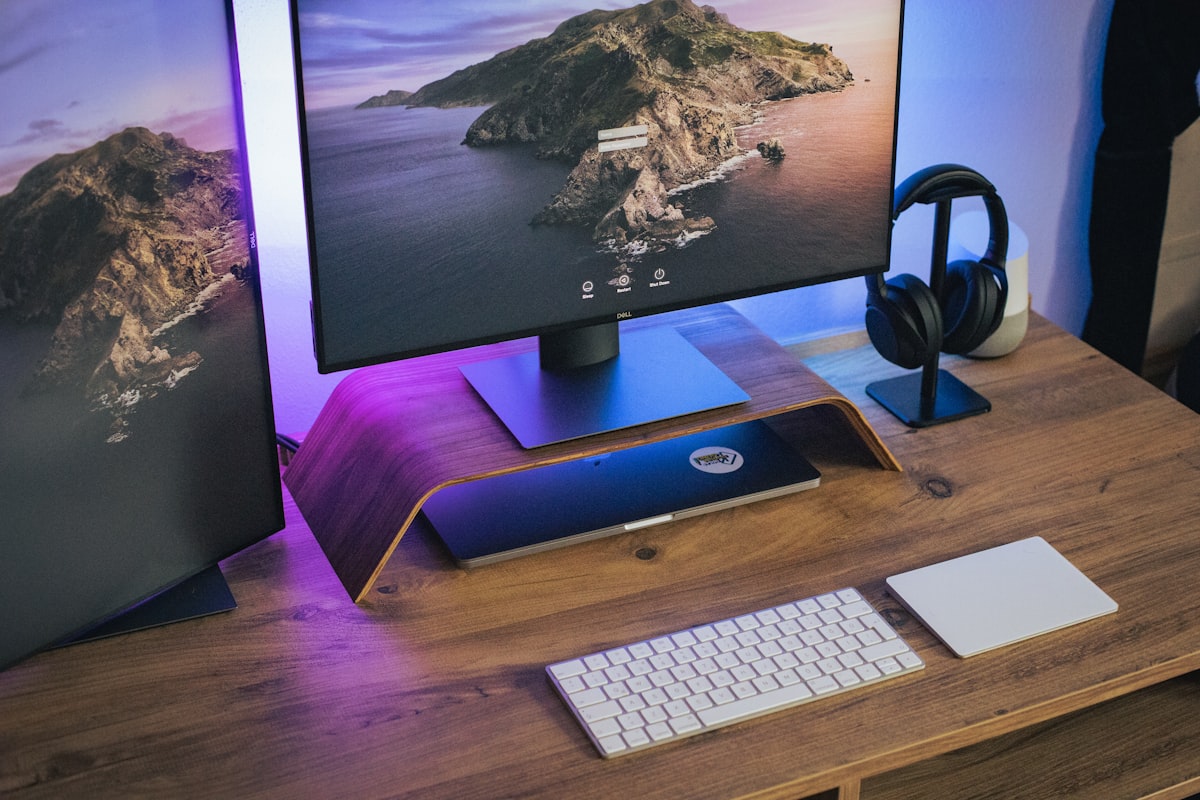
Why one screen is the real productivity bottleneck
Research on multi-monitor workflows is older than the hybrid working trend itself. Studies going back to the mid-2000s, including the much-quoted University of Utah work, found that people given a second display got through document and data tasks somewhere between 10 and 20 per cent faster than those on a single screen. The size of the effect is less interesting than what causes it. You’re not faster because pixels make you cleverer. You’re faster because your working memory stops being evicted every time you flick to a different window.
On a single laptop screen, you spend a noticeable chunk of every meeting hunting for the document you were just looking at. On two screens the document lives in one place and the call lives in the other. There’s no hunting. The cost of context switching, which is the real reason most knowledge workers finish the day exhausted, just stops.
There’s a health angle too, and it’s one your employer is supposed to care about. The Health and Safety Executive’s display screen equipment rules apply to people working from home, not just in the office, and a workstation assessment is meant to cover screen height and distance. A laptop on a table fails that test by design: the screen is too low, the keyboard is too close, and your neck pays for it. A separate monitor at eye level is the fix, whether or not you ever add a second one.
What a dual monitor setup UK buyers should expect to spend in autumn 2026
The market has settled into fairly honest pricing tiers. Prices move around week to week (Amazon, Currys and Box all run monitor deals through September and into Black Friday), so treat these as brackets rather than quotes.
| Price per monitor | What you get | Typical examples | Who it suits |
|---|---|---|---|
| Under £150 | 24-inch 1080p IPS, basic tilt stand, HDMI and DisplayPort | AOC, Iiyama ProLite, Dell entry range | Email, documents, Teams calls. The sensible second screen. |
| £180 to £280 | 27-inch 1440p IPS, height-adjustable stand, sometimes USB-C | Dell S2725DS, LG 27QP500 | Most hybrid workers. The sweet spot. |
| £300 to £500 | 27-inch 4K or 32-inch 1440p, USB-C with 65W to 90W power delivery | Dell S2725QC, HP E27q G5, LG UltraFine range | Anyone docking a laptop daily who wants one cable. |
| £500 and up | Colour-accurate 4K, ultrawides, OLED | Dell UltraSharp, LG OLED, Apple Studio Display | Photo and video work. Overkill for spreadsheets. |
A few notes on the table. Skip the cheapest TN panels even in the bottom tier: the off-axis colour shift makes them tiring to use as a secondary screen mounted at any angle, and you’ll be looking at it sideways all day. In the middle tier, 1440p is the point. You get noticeably crisper text than 1080p without the Windows scaling headaches that 4K brings on a 27-inch panel. And in the third tier, the USB-C part matters far more than the resolution. One cable carrying video, data and laptop charging is the difference between a desk you tidy and a desk you tolerate.
If you’ve got one usable monitor already, don’t feel obliged to upgrade it because it doesn’t match. The single biggest improvement in your day is going from one screen to two. Going from one nice 27-inch and one mediocre 24-inch to two matching panels is a much smaller leap, and a much more expensive one.
Matching panels or mixing what you already own
The instinct on YouTube is to tell you to buy two identical screens for that satisfying symmetrical look. In real homes with real desks and real budgets, that’s often the wrong call. A mismatched setup, your existing monitor as the primary and a smaller secondary alongside, works fine as long as you set the scaling per monitor (both Windows 11 and macOS let you do this) and you put the lower-quality screen in your peripheral vision rather than dead ahead.
The one situation where matching pays off is colour-critical work. If you edit photos, design slides for clients, or spend any time in Figma, a colour shift between screens will quietly drive you up the wall. For everyone else, ergonomics beat aesthetics: better a mismatched pair at the right height than a matching pair too low on the desk.
Or just use the laptop as the second screen
This gets skipped in most guides because it doesn’t sell anything. If you work from a laptop, you already own a second display. One external monitor at eye level as your main screen, with the laptop open on a stand to one side for Teams, Slack or the calendar, is a genuine dual monitor setup. It costs the price of one monitor and a £20 stand.
The catch is the height mismatch. A laptop screen on the desk sits a good 15cm lower than a monitor on a stand, so you end up dipping your head every time you glance at it. A stand fixes that, and it also stops the laptop cooking itself on the desk surface, which matters more than you’d think once the heating goes on. I ran this arrangement for about eight months before adding a second full-size screen, and the honest verdict is that the second monitor was nice to have rather than transformative. The first one was transformative.

Where to put the second screen: landscape, vertical or stacked
This is the bit most people get wrong. The default is two landscape screens side by side, both at eye level, primary directly in front and secondary at an angle. That works if you split your time roughly evenly between them. It’s the wrong setup if you spend 80 per cent of your day on one screen and just need the other for reference.
For a primary-and-reference setup, rotate the secondary monitor 90 degrees into portrait. A vertical screen is brilliant for long documents, Slack threads, code, or anything else that scrolls. Almost every monitor stand in the middle tier and up lets you do this, and Windows handles it cleanly. Stacking the secondary above the primary, like a small TV above a fireplace, also works if your desk is shallow. A monitor arm on a small desk makes that practical without losing surface area to two stands.
Whatever you do, get the top of the primary monitor to roughly eye level when you sit up straight. Cheap riser blocks, a stack of hardback books, or a proper arm all do the job. Which? have written sensibly about monitor positioning if you want a second opinion before you start drilling things into desks.
On arms: the Amazon Basics single arm is fine for a 24-inch panel and about £30 to £40. For a 27-inch or anything heavier, an Ergotron LX or a Humanscale is the one that won’t sag by Christmas, and you’ll pay £120 or more for it. Don’t buy a £25 dual arm for two 27-inch screens. It will droop, you’ll tighten it, it will droop again.
The boring bits: cables, docks and HDMI versions
This is where home setups quietly fall apart. A modern laptop with one or two USB-C ports can’t just drive two external monitors by magic. You need to know what your specific laptop can output, and through what.
Most Windows ultrabooks from 2022 onwards will drive two external displays through a Thunderbolt or USB4 port, usually via a dock. Apple is the awkward one. The M1 and M2 MacBook Airs only drive one external display natively; the M3 and M4 Airs handle two, but only with the lid closed. The Pro models have always been fine. If you’re stuck on an older Air, a DisplayLink adapter (Plugable and StarTech both make them, £60 to £100) gets you a second screen through software, with the small caveat that it’s not ideal for video playback. Check before you spend money on a second panel.
If you’re running more than one screen from a laptop, a decent USB-C docking station turns the desk from a cable nest into a single-cable connection. Look for DisplayPort 1.4 or HDMI 2.1 outputs if either monitor is 4K. Older HDMI 2.0 docks will cap you at 30Hz, which makes the mouse cursor feel like it’s wading through treacle.
The cables in the box with your new monitor are usually fine for 1080p. For 1440p or 4K at 60Hz, check the cable spec rather than trust the packaging. A “Premium High Speed HDMI” or “DisplayPort 1.4” stamp is what you want. And use DisplayPort over HDMI where you’ve got the choice; it’s less fussy about handshakes when the laptop wakes from sleep.
The settings nobody tells you about
Two screens with default settings is about half as useful as two screens set up properly. Ten minutes on this pays for itself in a week.
On Windows 11, the keyboard shortcut you want is Windows key plus Shift plus left or right arrow, which throws the active window across to the other screen. Windows plus left or right snaps it to half the screen you’re on. If you want more control, Microsoft’s free PowerToys package includes FancyZones, which lets you draw your own window layouts (three columns on the big screen, say) and snap windows into them. It’s the single most useful free download for a dual monitor setup and hardly anyone outside IT departments knows it exists.
On a Mac, go into System Settings, Displays, and set the external monitor as the main display so the menu bar and Dock land on the big screen rather than the laptop. Then turn off “Displays have separate Spaces” if you find full-screen apps blacking out the other monitor, which they will. Mission Control’s separate Spaces per display is either wonderful or maddening depending on how you work; try both for a day.
On either system, set the scaling so text is the same physical size on both screens. A 27-inch 1440p at 100 per cent and a 24-inch 1080p at 100 per cent look close enough. A 27-inch 4K needs 150 per cent to match, and that’s where Windows occasionally decides one app should render blurry. If that happens to you, right-click the app’s shortcut, Properties, Compatibility, and override the high-DPI scaling. Faff, but it works.
Four things people get wrong about two screens
Bigger is better. Not really. Two 32-inch panels on a normal desk mean your head is swivelling like a tennis umpire. Two 27s is the practical ceiling for most desks, and two 24s is fine if you sit close.
4K is always worth it. On a 27-inch screen for office work, 4K mainly buys you scaling problems. It’s worth it at 32 inches, or for photo and video editing. For Excel and email, 1440p is sharper than you’ll ever need.
An ultrawide is the same as two monitors. It’s close, and for some people better, because there’s no bezel down the middle. But a 34-inch ultrawide is roughly the same width as two 24-inch panels, costs more than both put together, and you can’t rotate half of it to portrait. Video calls also fill it awkwardly. If you’re mostly in documents and spreadsheets, an ultrawide is lovely. If you’re mostly in calls with a document open alongside, two screens are better.
Everyone is more productive with two screens. Some people just end up with Twitter permanently open on the second one. Be honest with yourself about that before you spend £200 building a distraction holder.
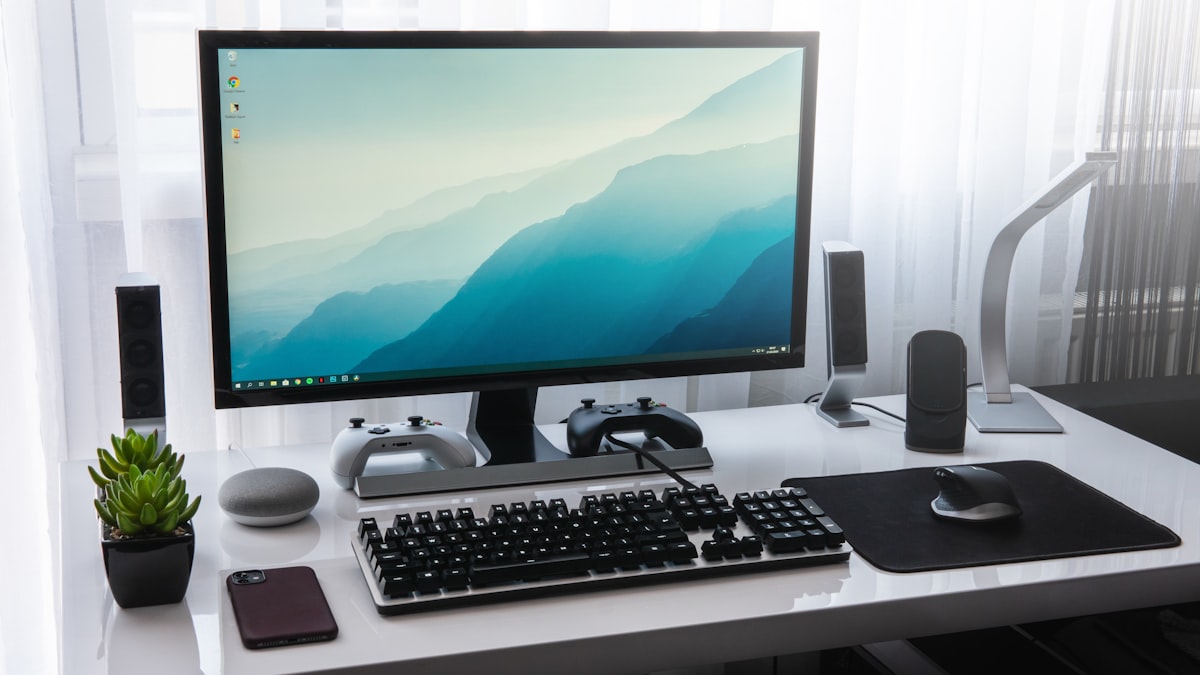
Will your employer pay for it?
Possibly, and it’s worth asking before you buy. Plenty of larger UK employers have a home-working equipment budget (often £200 to £500 as a one-off) that they don’t advertise loudly, and the HSE guidance on display screen equipment gives you a reasonable basis for requesting a monitor if you’re on a laptop all day. Ask HR or your line manager what the policy is; the worst they can say is no.
If they won’t pay, you may still get a little back. HMRC’s working-from-home tax relief lets employees claim on £6 a week (a modest sum at basic rate) if your employer requires you to work from home and doesn’t reimburse your costs. It doesn’t cover equipment directly, and the rules tightened after the pandemic, so check the current eligibility on gov.uk rather than assuming. Self-employed people can generally claim equipment as a business expense, which is a better deal.
When a dual monitor setup is the wrong answer
This isn’t the right upgrade for everyone. If your day is mostly meetings with the laptop closed and notes in a notebook, two screens add nothing. If you work primarily in a single full-screen application, like some creative tools, certain trading platforms, or some accounting software, the second screen becomes a distraction holder rather than a productivity tool.
There’s also the desk question. A 27-inch monitor needs about 65cm of width plus stand depth. Two of them need 130cm. If your “office” is a folding desk in the kitchen, a single 32-inch panel or an ultrawide often works out better than cramming two 24-inch screens together and losing all the space for your keyboard. And if you split your time between sitting and standing, check that a standing desk converter can actually take the weight of two monitors before you buy one; most of the cheap ones can’t.
What to buy first if you’re building this from scratch
If you’ve got nothing and want a sensible UK setup this autumn, here’s the order of priority that breaks down least.
Start with one 27-inch 1440p IPS monitor, with USB-C power delivery if your laptop supports it. The Dell S2725QC or HP E27q G5 are the safe picks; the Dell S2725DS if you don’t need USB-C. Add a dock if your laptop only has one or two ports. Get a basic arm rather than the included stand: it saves desk surface and lets you adjust height properly. Then, only once that’s set up and working, add a second screen. Many people find the productivity jump from one big screen alongside the laptop’s own display is so good they delay the second monitor indefinitely. That’s fine. That’s the point.
Pair it with a decent webcam if you spend hours on calls. A 1080p external camera looks dramatically better than the average built-in laptop one, and we’ve covered the webcam options worth considering for UK home workers if that’s your next gap. Don’t skip the small ergonomic bits either: monitor height, keyboard distance, a proper chair. Spending £500 on screens and then hunching over them on a kitchen chair is the most British home-office mistake there is. Our guide to the best office chair under £400 covers the models that hold up to full working days, and if you’re kitting out a student instead, the best student laptop under £500 pairs with any of the monitors above.
If a fixed dual setup feels like overkill for the way you actually work, our guide to portable monitors under £300 covers the travel-friendly alternative that lives in a laptop bag. Audio is usually the next thing people notice on calls once the screens are sorted; see our best USB microphones under £150 for the difference a proper mic makes. And the upgrade that pays off faster than a second screen, if your wrist already aches by Thursday, is a vertical mouse.
So if you’ve only got one screen right now, what’s actually stopping you from adding the second one this week?





Spot on about the second screen not needing to be a 4K monster. I picked up a refurb Dell 24-inch off Currys for £79 last year and it’s done more for my afternoons than any productivity app I’ve tried. The unglamorous part for me was the cable management – took longer than the actual setup. Any monitor arm recommendations for a flimsy IKEA desk that won’t pull the whole thing forward?